
Administration
MCP servers exist at a scope — a user, a team, an organization or the whole platform. Administrators decide which servers each scope can use and how they behave by default.
Scopes at a glance
- Personal — servers a user creates on the MCP page; visible only to them (and whoever they share with).
- Organization / Team — servers managed in the organization or team settings; members see them in their Actions list.
- Platform — system servers such as the core capabilities, managed by platform administrators.
Enable servers for an organization or team
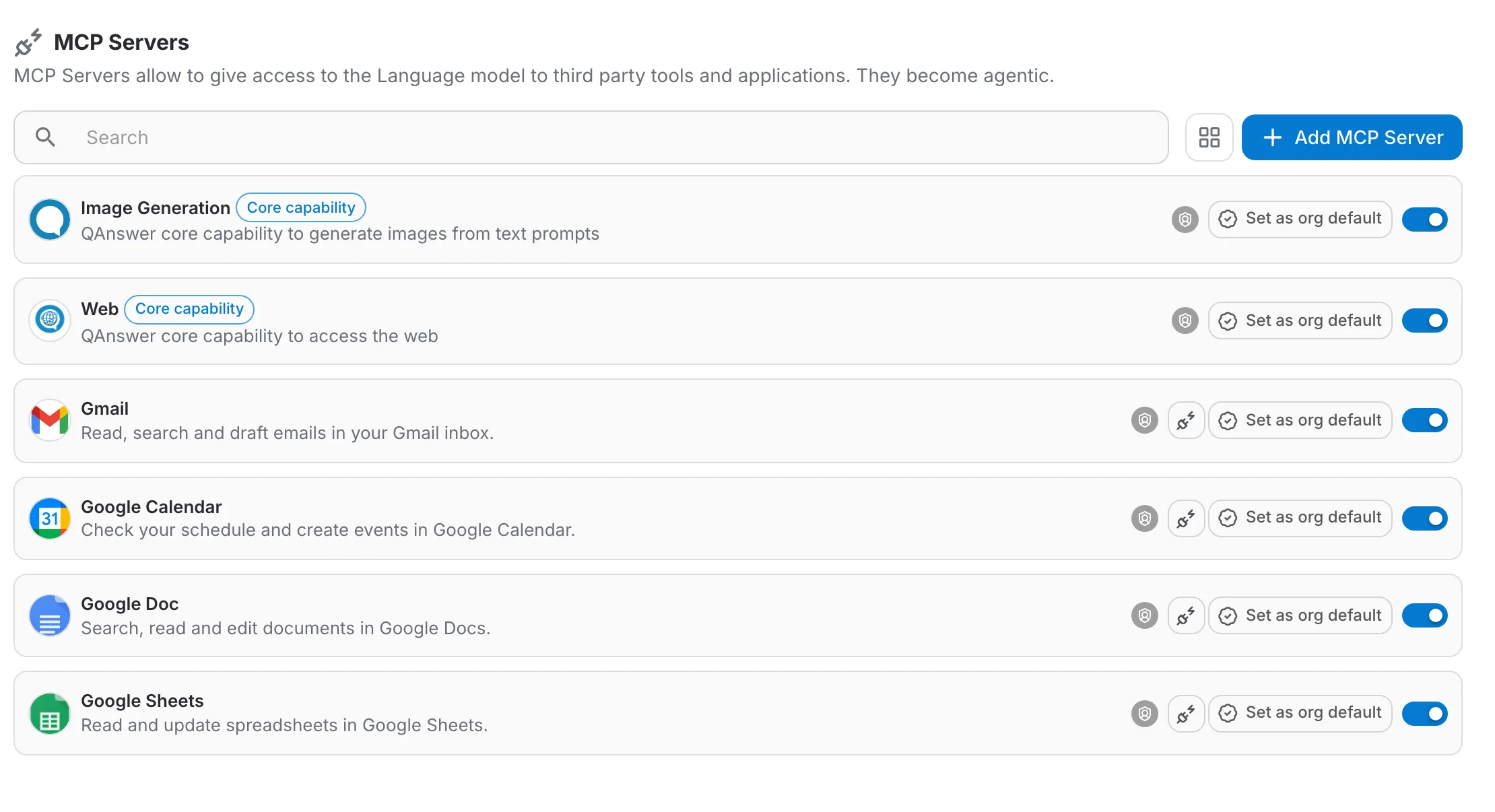
In the organization settings, open the MCP section. The same management page appears for teams. From here administrators control what members can use:
- The switch activates or deactivates a server for everyone in the scope.
- Click Set as default to preselect a server in members' new conversations.
Tool behaviour defaults
On a server's page, every tool carries two chips under its description. Click a chip to turn the behaviour on (ticked and tinted) or off (a plus sign):
- Ask for Confirmation — every run pauses and asks the user first. Turn it on for tools that modify data or spend money.
- Explain Actions — before the tool runs, the assistant writes one short line about what the call does, in the user's language. It is shown on the tool step while the call runs and stays there, with a check mark, once the result is in. Turn it on for slow tools, so users know what is happening during a long run.
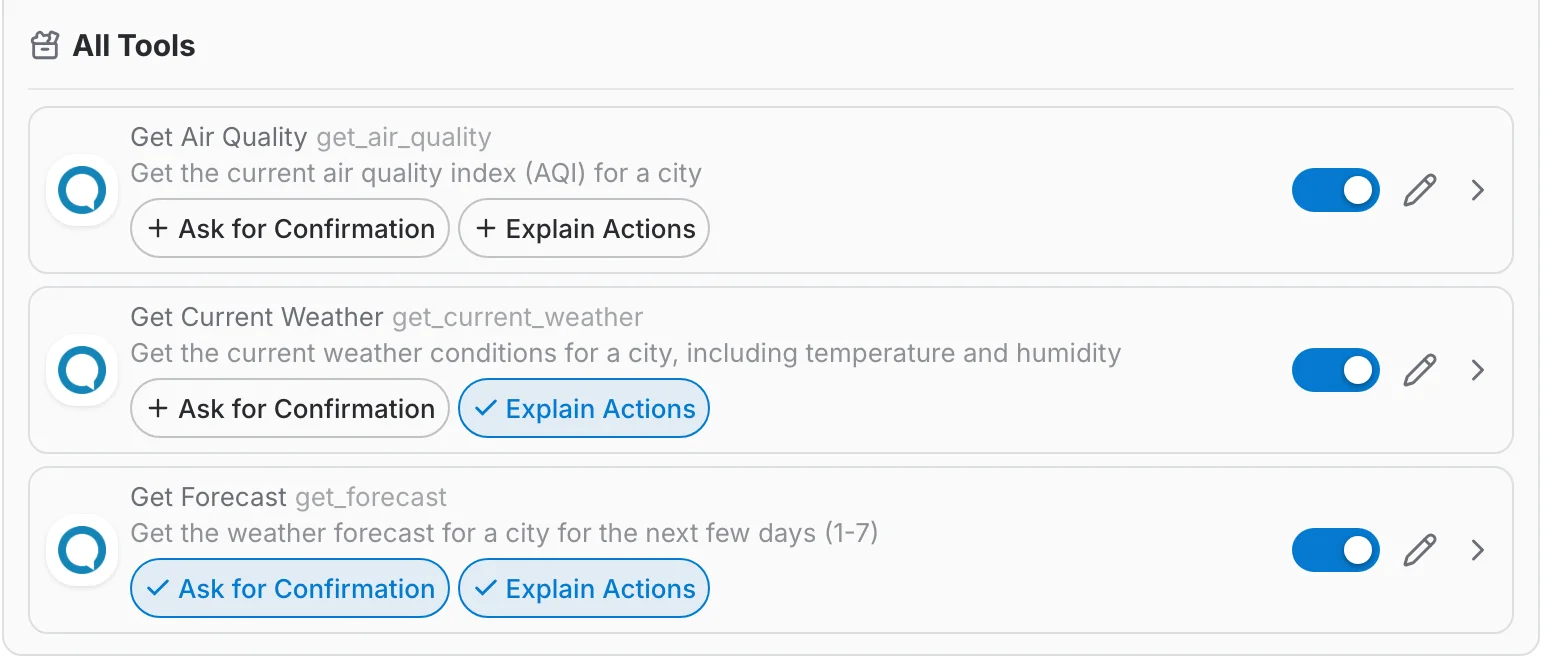
Both flags are set per scope: a platform administrator sets them for everyone, an organization administrator for the organization, a user for themselves. A flag turned on at a higher scope wins: lower scopes see it ticked with a lock and cannot turn it off. Code Execution ships with Explain Actions on for the whole platform.
Who can do what
All users
- Create, edit and delete their own MCP servers.
- Create and delete their own connections.
- Choose which enabled servers each of their conversations uses.
Organization & team administrators
- Activate or deactivate servers for their organization or team.
- Set scope defaults and manage servers owned by the scope.
Platform administrators
- Manage system servers and core capabilities.
- Full access to every server and every scope.
Best practices
- Enable confirmation by default for every tool that writes, sends or deletes.
- Keep tool selections minimal — fewer, well-described tools make the AI more accurate.
- Prefer per-user secret fields over shared all-users headers for anything sensitive.
- Review the connections and tools of shared servers regularly.
- Turn on Explain Actions for tools that take more than a few seconds, so the wait is never a blank card.